Segmentation Wizard Session Groups
Segmentation Wizard session groups include all objects associated with the context, as well as all frames and labeled classes, trained models, and the set training parameters for deep models. This lets you resume working without having to import the required objects or to repeat time-consuming tasks, reproduce previous results, as well as share data with others.
Session groups appear on the Data Properties and Settings panel after you exit a context, as shown below. Session groups can be reloaded, exported, and imported.
Session group in the Data Properties and Settings panel

 Loading Session Groups
You can load a session group to fully restore a workflow and then continue working.
- Do one of the following:
- Right-click the session group on the Data Properties and Settings panel and then choose Reopen Segmentation Wizard in the pop-up menu.
Drag the session group file from the Organizer to the Dragonfly workspace.
Exporting and Importing Session Groups
You can export and import session groups, as well as save session groups in the Organizer (see Adding Data to Projects). You should note that session groups are saved in the Dragonfly Object (*.ORSObject extension) file format.
- Do one of the following:
- Right-click the session group on the Data Properties and Settings panel and then choose Export > As ORSObject in the pop-up menu.
- Click the Export Object
 button on the Data Properties and Settings panel.
- Choose a location and file name in the Export to File dialog and then save the file.
- Do one of the following:
- Click the Import Object
 button on the Data Properties and Settings panel.
 - Choose File > Import Object(s) on the menu bar.
- Click the Import Object
- Navigate to, choose, and then open the required Dragonfly Object file in the Import Object(s) dialog.
The Select Objects dialog appears.
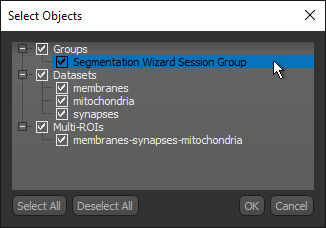
Note You can also import a session group from a saved session. In this case, select the Session file (*.ORSSession extension) with the required group and then select the session group that you want to import in the Select Objects dialog.
- Select the object(s) that want to import and then click OK.
